



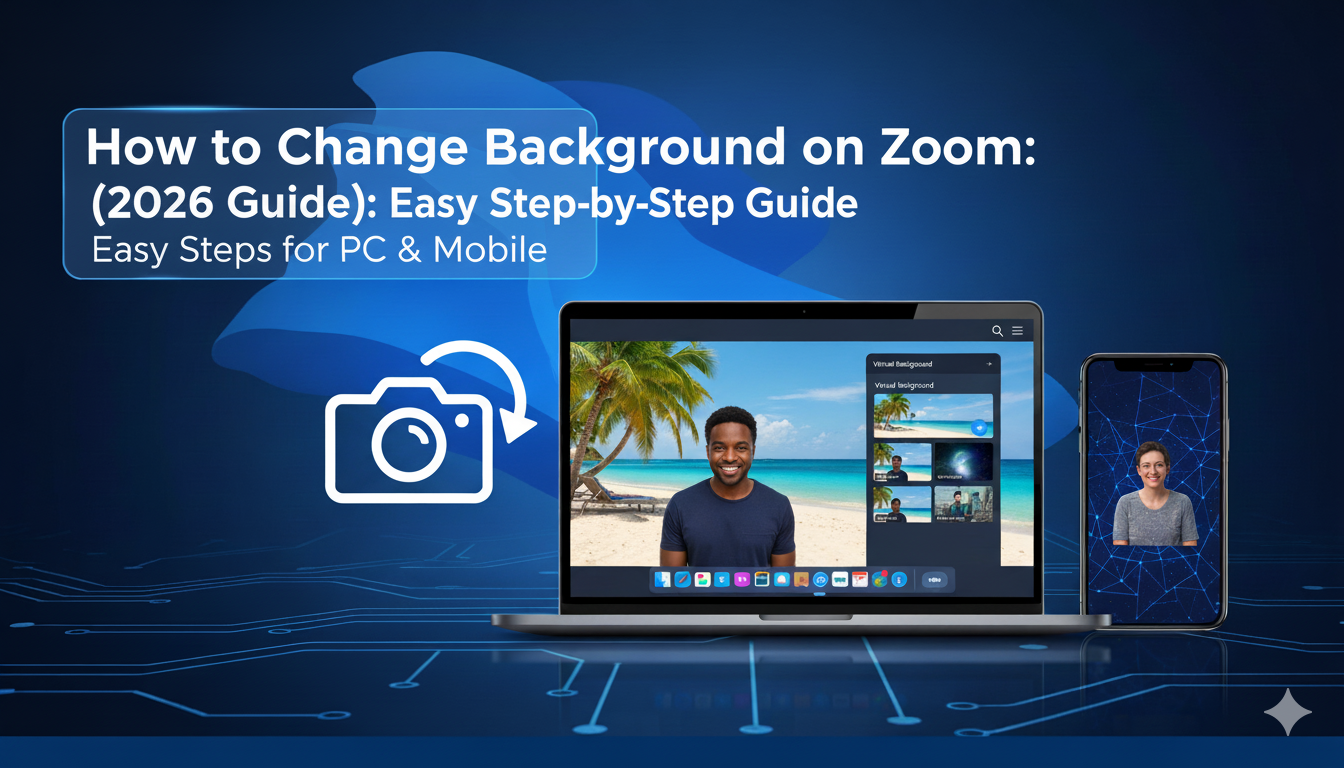
Have you ever joined a video call and realized your room was a mess? We have all been there! Maybe your laundry is piled up behind you, or your kids are running around. Using a virtual background is the perfect way to hide the clutter. It makes you look professional and keeps your private life private. In this guide, I will show you exactly how to change background on Zoom so you can feel confident in every meeting.
Changing your look on camera is easier than you might think. Whether you want a fancy office view or a relaxing beach scene, Zoom has tools to help. In 2026, these features are smarter and faster than ever. You don’t even need a fancy computer to make it work! Let’s dive into the simple steps to get you started.
Why You Should Use a Virtual Background
Using a virtual background isn’t just about hiding a messy room. It is a great way to show your personality. If you are in a formal meeting, a clean office background looks very professional. If you are chatting with friends, a funny or colorful background can be a great icebreaker. It helps everyone feel more relaxed.
I remember my first big video interview. I was so nervous about my plain white wall looking “boring.” I used a soft library background, and it made me feel much more “in the zone.” It also helps with privacy. You don’t have to worry about people seeing what is inside your home. It creates a safe space for you to work from anywhere.
Checking Your System for Zoom Backgrounds
Before we start, we should make sure your device can handle the change. Most modern laptops and phones work great. However, if your computer is very old, the background might look a bit “glitchy.” Zoom uses smart AI to tell the difference between you and your wall. This works best if you have a clear area behind you.
| Feature | Best Requirement (2026) | Why It Matters |
| Processor | Intel i5 or better | Keeps the video smooth. |
| RAM | 8GB or more | Prevents your computer from lagging. |
| Internet | 5 Mbps upload | Stops the background from “flickering.” |
| Lighting | Bright, even light | Helps the AI see your edges clearly. |
| Background | Solid color wall | Makes the “cut out” look perfect. |
How to Change Background on Zoom Before a Meeting
The best time to set your background is before the call starts. This way, you don’t surprise anyone with a messy room for even a second! First, open the Zoom app on your computer. Look for the small gear icon in the top right corner. This is your Settings menu. Click on it to see all your options.
Inside Settings, look for the tab that says “Video & Effects” (or Background & Filters). Here, you will see a preview of your camera. You can click on any of the pictures Zoom provides. If you want to use your own photo, click the plus (+) icon. It is like picking a wallpaper for your phone! Once you click a photo, it stays there for every meeting until you change it again.
Changing Your Background During a Live Call
Sometimes, you forget to set your background until the meeting has already started. Don’t worry! You can still change it in a few seconds. Look at the bottom of your Zoom screen where the “Stop Video” button is. Do you see the tiny upward arrow (^) next to it? Click that arrow to open a small menu.
From that menu, select “Adjust Background & Effects.” A window will pop up right over your meeting. You can click different images to see how they look in real-time. My favorite trick is the “Blur” option. It keeps your real room but makes everything behind you look fuzzy. This is perfect if you want a natural look without using a fake picture.
Using AI-Generated Backgrounds in 2026
One of the coolest new features in 2026 is the AI Background Generator. Instead of picking an old photo, you can tell Zoom what you want to see. For example, you can type “a cozy coffee shop with rain outside.” The AI will create a brand-new image just for you! This ensures your background is truly original.
To find this, go to your background settings and look for the “Generate” button. It is a fun way to match your mood to your meeting. If it is a Friday, maybe you want a “space station” or a “forest.” It adds a touch of magic to your workday. Just make sure the prompt you use is appropriate for the people you are meeting with!
How to Change Background on Zoom Mobile (Android & iOS)
If you are using a phone or tablet, the steps are slightly different. First, join your meeting as usual. Tap the screen to see the controls at the bottom. Tap the button that says “More” (it usually looks like three dots). A menu will slide up from the bottom.
Look for “Background & Effects” in that list. Just like on the computer, you can pick from the default images or tap the plus (+) sign to use a photo from your phone’s gallery. On mobile, the “Blur” feature is very popular because phone cameras are great at focusing on faces. It is a lifesaver when you are taking a call from a busy cafe or an airport.
Pro Tips for the Best Look Without a Green Screen
You don’t need a physical green screen to look great on Zoom anymore. However, a few small tips can make the AI work much better. First, try to wear clothes that are a different color than your wall. If you wear a green shirt and have a green wall, you might disappear into the background!
Second, make sure you have good lighting. If you sit with a bright window behind you, the AI might get confused. It is better to have the light hitting your face. This helps the software draw a sharp line around your head and shoulders. This simple trick makes the how to change background on Zoom process look much more professional and realistic.
Using Video Backgrounds for More Energy
Did you know you can use a moving video as your background? Instead of a still photo, you can select a short clip. Imagine sitting in front of a gently swaying palm tree or a moving city skyline. It adds a lot of life to your video feed. Zoom supports MP4 and MOV files for this.
To set this up, go to the same “Background & Effects” menu. When you click the plus (+) icon, choose “Add Video” instead of “Add Image.” Keep the video simple, though! If the video has too much movement, it can distract other people in the meeting. A slow, looping video is usually the best choice for a calm environment.
Troubleshooting Common Zoom Background Issues
Sometimes, things don’t go perfectly. If you see parts of your real room “bleeding” through the virtual image, it is usually a lighting issue. Try turning on a lamp in front of you. If you don’t see the “Virtual Background” option at all, you might need to update your app. Always check for updates in the Zoom menu.
Another common fix is to check your Zoom web portal. Sometimes, the “Virtual Background” feature is turned off in your account settings. Sign in to the Zoom website, go to Settings, and make sure the toggle for “Virtual Background” is blue. Once you turn it on there, it will show up in your app on your computer and phone.
Fun Filters and Studio Effects
Beyond just backgrounds, Zoom lets you add Video Filters and Studio Effects. Want to wear a funny hat or look like you are inside a TV screen? Filters are the way to go. You can find these in the tab right next to “Virtual Backgrounds.” They are great for team-building events or casual Friday hangouts.
Studio Effects allow you to change your lip color, eyebrow shape, or even add a beard! While these are mostly for fun, the “Touch up my appearance” tool is very helpful. It acts like a soft focus for your skin, making you look well-rested even if you didn’t sleep well. It is like having a tiny makeup artist inside your webcam.
Conclusion: Master Your Virtual Space
Learning how to change background on Zoom is a skill that will help you every single day. It gives you control over how people see you. Whether you use a simple blur, a professional office photo, or a fun AI creation, you can now show up to every meeting with confidence. No more worrying about the laundry or the messy shelves!
Try out a few different looks today. See which ones make you feel the most comfortable. Remember to check your lighting and keep your app updated for the best results. Now that you know the secrets, go ahead and impress your coworkers with your new, polished look
Frequently Asked Questions (FAQs)
1. Can I use Zoom backgrounds on a Chromebook?
Yes! You can use virtual backgrounds on the Zoom PWA for Chrome. Just look for the “Background & Effects” menu during your meeting.
2. Why is my Zoom background flickering?
Flickering usually happens because of low light or because your clothes match your real background. Try adding more light to your face.
3. Do I need a green screen for Zoom?
No, you do not need a green screen. Zoom’s AI is smart enough to remove your background without one on most modern devices.
4. Where can I find free Zoom backgrounds?
You can find thousands of free images on sites like Unsplash, Pexels, or Canva. Just look for “1920×1080” images for the best fit.
5. How many backgrounds can I upload to Zoom?
There is no strict limit! You can upload as many as you like and switch between them whenever you want.
